GrimKeep System Requirements
Windows, macOS, PS5, and Steam Deck specs with a practical launch checklist.
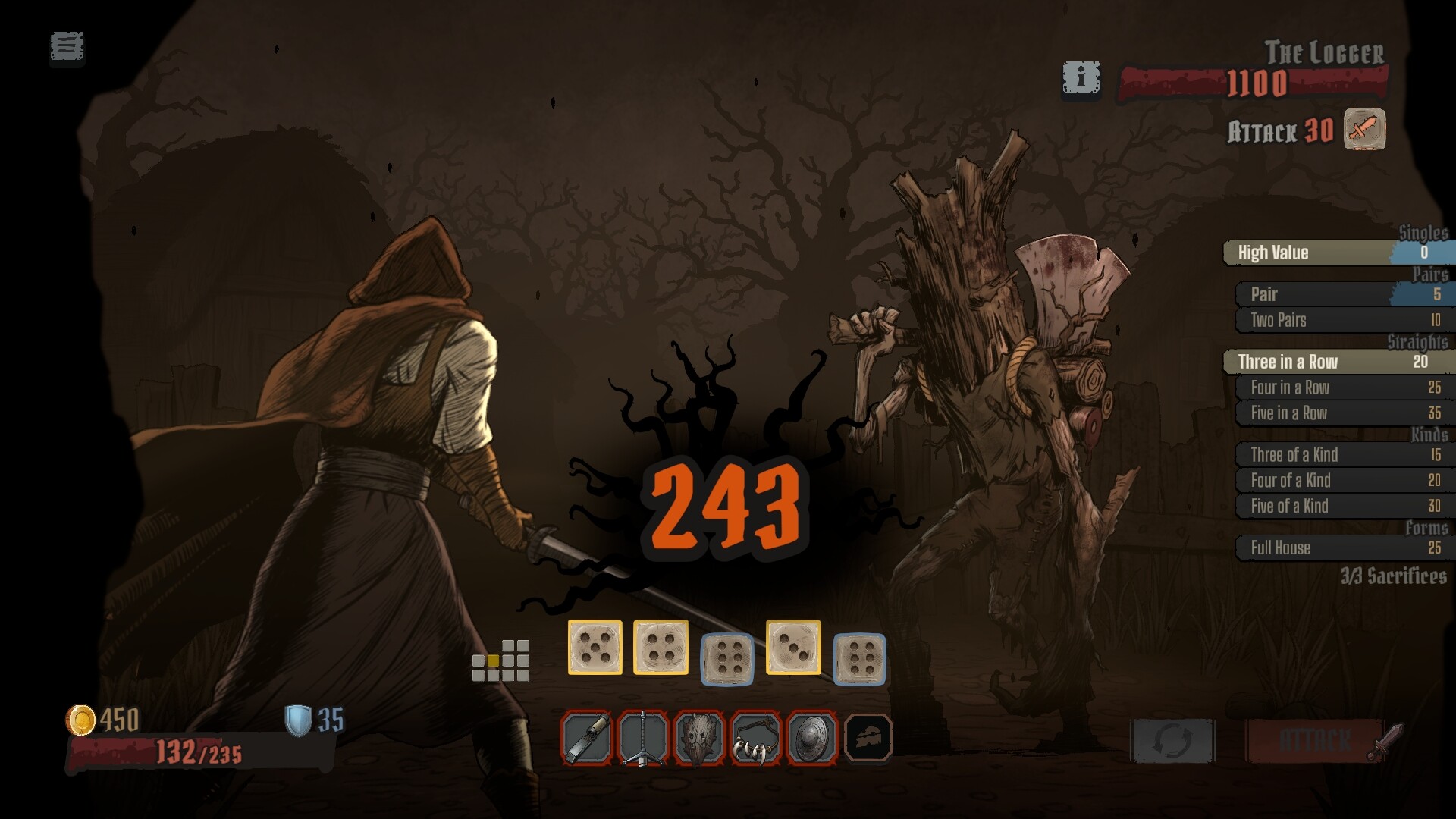
GrimKeep is built to run on modest hardware. Resolution Games publishes clear Windows floors, Steam lists matching macOS lines, PlayStation 5 carries the console version, and Steam Deck language pages mark the title Verified. Use this page to decide whether your machine clears minimum, whether you should aim for recommended, and what to fix before the November 30, 2026 launch.
Price at launch is $14.99. Platforms are Steam (Windows + macOS) and PlayStation 5. The game is single-player—no multiplayer lobby to blame if your laptop thermal-throttles mid-run. Confirm specs once, free the disk space, pair a controller, then move on to Getting Started.
For the broader prep map, return to the Tools hub. For calendar and storefront timing, see release date & platforms.
Windows (Steam)
Official Windows guidance targets 64-bit Windows 10 and up. Minimum is intentionally low; recommended is the comfort line for steadier frame times and fewer background fights with browser tabs.
| Spec | Minimum | Recommended |
|---|---|---|
| OS | Windows 10 (64-bit) | Windows 10 / 11 (64-bit) |
| CPU | Intel Core i3-4130 / AMD FX-4300 (or dual-core ~2.5 GHz with SSE2) | Intel Core i5-8400 / AMD Ryzen 5 2600 |
| RAM | 4 GB | 8 GB |
| GPU | DirectX 11, 1 GB VRAM — Intel HD Graphics 4400 / NVIDIA GeForce GT 730 / AMD Radeon R7 240 (or equivalent) | NVIDIA GeForce GTX 1050 / AMD Radeon RX 560 / Intel Iris Xe with 2 GB VRAM |
| DirectX | Version 11 | Version 11 |
| Storage | 1 GB available space | 1 GB available space |
If you sit between the columns—say 8 GB RAM but a GT 730—treat the GPU column as the hard gate. Integrated graphics older than HD 4400, or discrete cards without a reliable DirectX 11 path, are the usual failure points. Close heavy overlay stacks (multiple launchers, RGB suites, browser hardware acceleration) before blaming the game.
macOS (Steam)
Mac players should match both OS version and chip generation. Apple Silicon is the smoother path; Intel Macs need a mid-2010s i5 floor at minimum.
| Spec | Minimum | Recommended |
|---|---|---|
| OS | macOS 12 Monterey or newer | macOS 13 Ventura or newer |
| CPU | Apple M1 or Intel Core i5 (2015 or newer) | Apple M1 or newer |
| RAM | 4 GB | 8 GB |
| GPU | Metal-capable GPU | Apple M1 GPU or better |
| Storage | 1 GB available space | 1 GB available space |
Upgrade macOS before launch week if you are still on Big Sur or earlier. Metal support is required; exotic eGPU setups are outside the official table, so prefer the listed Apple GPU path when possible.
PlayStation 5
On PS5, GrimKeep is a standard single-player download with offline play enabled and Remote Play supported. The PlayStation listing calls out DualSense vibration and trigger-effect support. There is no separate “PS5 Pro only” tier in the public materials—if your console is a normal PS5 with free storage for a ~1 GB-class install plus update headroom, you are in the supported set.
Console checklist:
- Install on internal SSD or a supported extended SSD.
- Leave headroom beyond the stated PC 1 GB figure for console patches and reserved system space.
- Enable DualSense features in system settings if you want vibration and adaptive triggers.
- Use Rest Mode downloads the night before launch so you are not queued behind a large OS update.
Steam Deck
Steam storefront language pages list GrimKeep as Steam Deck Verified. Verified means Valve’s checklist for defaults, controls, and readability cleared at certification time—not that every community plugin or custom resolution will be perfect forever.
Deck tips:
- Update SteamOS before launch day.
- Keep at least a few gigabytes free so Proton prefixes, shader caches, and screenshots do not starve the 1 GB game install.
- Prefer the official controller layout first; Steam lists full controller support, including Xbox and DualSense paths on PC, which usually translates cleanly to Deck inputs.
- If performance dips in busy combat screens, drop to a stable 40/45 FPS cap before lowering every visual option at once.
Storage, installs, and updates
The published 1 GB figure is the install budget on PC/Mac tables—not a promise that demos, cloud mirrors, and future patches stay forever under that number. Practical advice:
- Free 2–3 GB before launch so the first patch does not fail mid-download.
- Install Steam to an SSD when you can; spinning disks still run the game but make shader hitching more obvious.
- After uninstalling the Next Fest demo (if you kept it), reboot once so leftover Redistributables are not confused with a bad install.
- On PS5, delete unused demos and capture video if the console warns about free space.
Controllers and input
Steam feature tags call out full controller support, Xbox controller support, and DualSense support. PS5’s own page adds vibration and trigger effects for DualSense. Keyboard and mouse remain valid on PC—the official Windows write-ups still mention them as expected input—but the design clearly expects a pad in hand for many players.
Quick pairing notes:
- Xbox pads on PC: plug in or use the vendor wireless dongle; confirm Steam Big Picture sees the device.
- DualSense on PC: wired is the least surprising path; wireless depends on your Bluetooth stack.
- DualSense on PS5: native—enable vibration/triggers in console settings.
- Steam Deck: use the built-in controls first; remap only after you finish a clean run.
Launch prep checklist
Work top to bottom the weekend before November 30:
- Pick your storefront—Steam or PS5—and finish any account / payment prompts early.
- Compare your hardware to the tables above; if you fail minimum, upgrade RAM/GPU or switch devices.
- Free disk space with margin; verify the drive is healthy.
- Update GPU drivers (Windows), macOS point releases, or PS5 system software.
- Pair and test your controller in another game or Steam’s tester.
- Wishlist / follow Resolution Games channels via the Links hub so launch news is hard to miss.
- Read Getting Started so your first hour has goals.
- Skim release date & platforms for final time-zone confirmation.
- After launch, watch the Updates hub for day-one patches before deep build experiments.
- When you start ranking items and heroes, graduate to the Tier List hub and Players hub.
How this page stays honest
Specs here follow Resolution Games’ published Windows guidance and the Steam / PlayStation storefront tables. If a patch raises storage or changes Deck verification, this page should move with the Updates log—not with rumor. For curated official URLs, use the Links hub. For the rest of the prep tooling, stay on the Tools hub.
Clear the hardware gate once. Then spend your attention on dice, items, and the road to the Princess—not on last-minute driver installs.
Frequently Asked Questions
Quick answers to the most common questions.
What are the Windows minimum specs for GrimKeep?
Windows 10 64-bit, Intel Core i3-4130 or AMD FX-4300, 4 GB RAM, a DirectX 11 GPU with 1 GB VRAM (HD 4400 / GT 730 / R7 240 class), and about 1 GB of storage.
What are the recommended Windows specs?
Windows 10/11, Intel Core i5-8400 or AMD Ryzen 5 2600, 8 GB RAM, and a GTX 1050 / RX 560 / Iris Xe class GPU with 2 GB VRAM, still on DirectX 11 with about 1 GB of storage.
Can Macs run GrimKeep?
Yes on Steam. Minimum is macOS 12 Monterey with Apple M1 or Intel i5 (2015+), 4 GB RAM, and a Metal GPU. Recommended is macOS 13 Ventura or newer with M1+ and 8 GB RAM.
Is GrimKeep Steam Deck Verified?
Yes—Steam language storefront pages mark it Verified. Keep SteamOS updated and leave extra free space beyond the 1 GB install for caches and patches.
Does GrimKeep support DualSense and Xbox controllers?
Steam lists full controller support including Xbox and DualSense. On PS5, DualSense vibration and trigger effects are supported per the PlayStation listing.
How much storage should I free before launch?
Official PC/Mac tables list 1 GB, but freeing 2–3 GB is safer so day-one patches and shader caches do not fail mid-download.